Why Do My TikToks Post Blurry? (Upload Quality Fix)
The single most common cause of blurry TikTok posts is a setting most people do not know exists, and one that resets itself without warning.

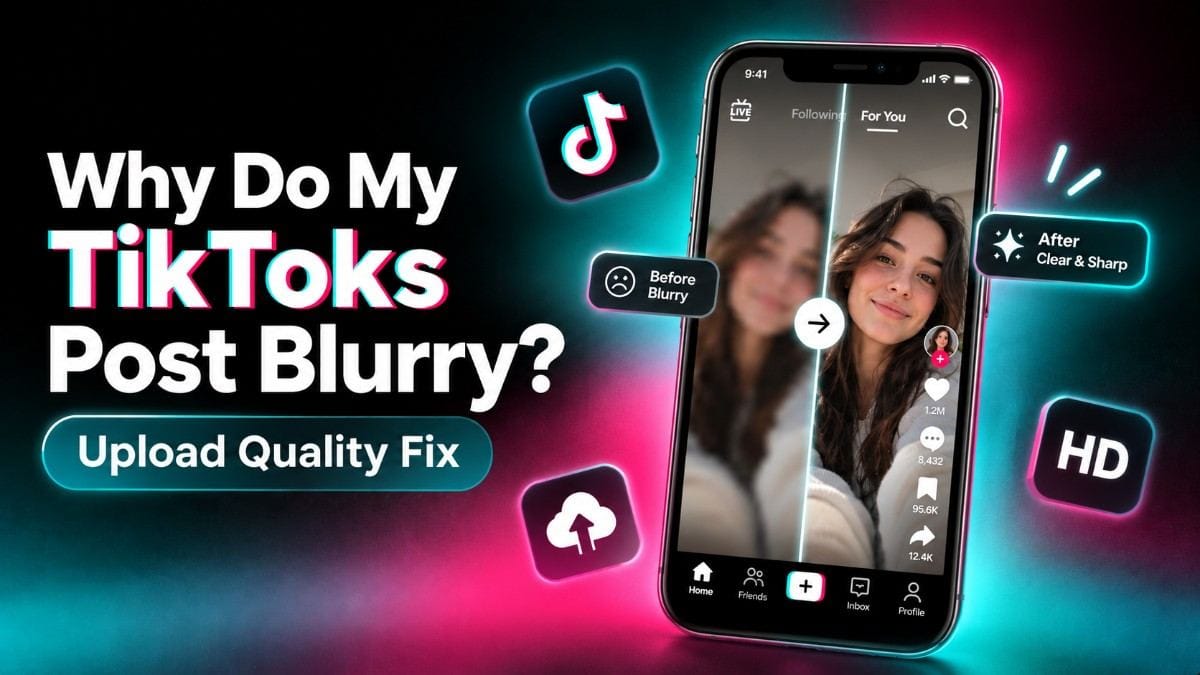
TikTok videos usually post blurry because the platform's own compression is stripping detail out of your file, not because of anything wrong with the original footage. The most common cause is a hidden setting that resets itself after app updates. The second most common cause, exporting at 4K, works backwards from what most people assume.
Updated September 2026
The upload settings that actually matter
| Setting | What to do | Where to find it |
|---|---|---|
| High-quality uploads | Turn on | Post screen, then "More options" |
| Export resolution | 1080p, not 4K | Your editing app's export settings |
| Export frame rate | 30 or 60fps | Your editing app's export settings |
| Export bitrate | Around 10 to 15 Mbps | Your editing app's export settings |
| Data Saver | Turn off | Settings and Privacy, then Data Saver |
The setting that fixes this for most people
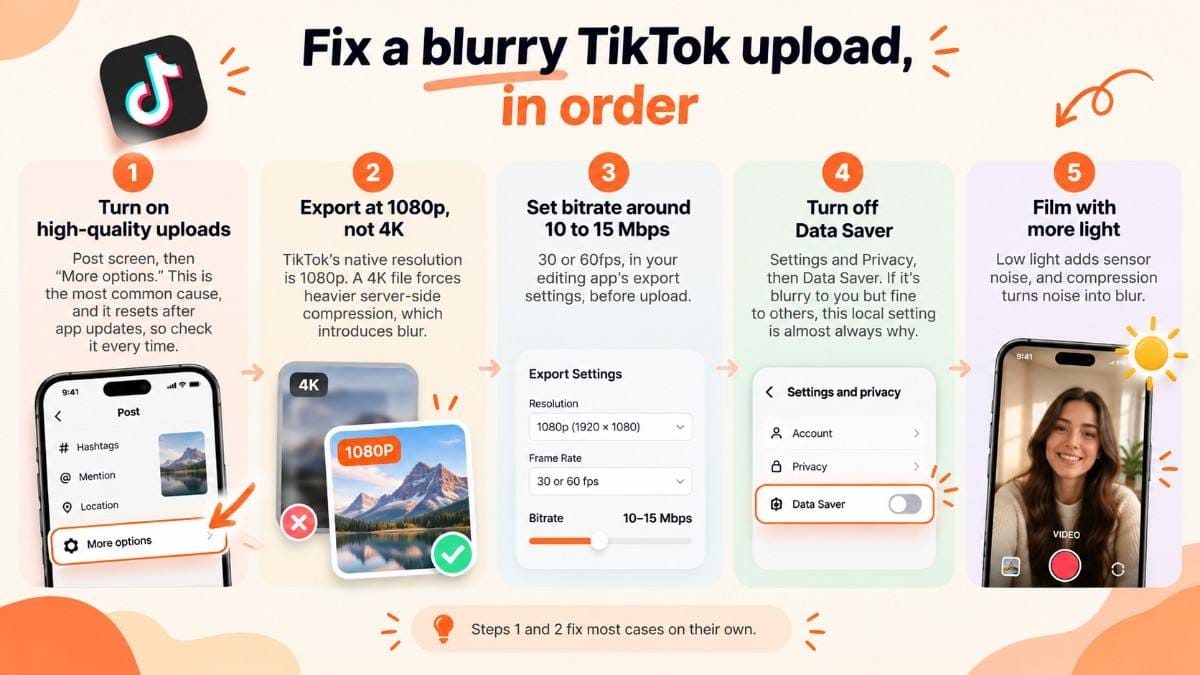
The single most common cause of blurry TikTok posts is a setting most people do not know exists, and one that resets itself without warning. On the Post screen, where you write your caption before publishing, tap More options and make sure Allow high-quality uploads is toggled on. App updates occasionally reset this back to off, so it is worth checking before every batch of uploads rather than assuming it stayed on from last time.
Why exporting in 4K makes things worse, not better
This one runs backwards from what most people assume. TikTok's native resolution is 1080p, not 4K, so uploading a 4K file does not give TikTok more to work with, it gives TikTok's servers a much larger file to compress down aggressively to 1080p, and that heavier compression pass is what introduces visible artifacts and blur.
The fix is exporting your video at 1080p directly from your editing app, at 30 or 60fps, with a bitrate around 10 to 15 Mbps. This pre-shrinks the file in a controlled way before TikTok ever touches it, instead of handing TikTok a large 4K file to compress on its own terms. Check your export dimensions against Handler's TikTok Size Guide before you export if you are not sure what your editing app is currently set to.
If it only looks blurry to you
One diagnostic worth running before changing anything: ask someone else to check the video, or view it from a different device or account. If it looks blurry only to you and fine to everyone else, the problem is local, not the upload itself. Check Settings and Privacy, then Data Saver, and make sure it is turned off. Data Saver reduces video quality specifically on your own device to save your own bandwidth, and it has nothing to do with what TikTok actually distributed to other viewers.
Lighting matters more than people expect
Low light triggers more digital noise from your camera's sensor, and TikTok's compression algorithm tends to turn that noise into a blurry, mushy mess rather than compressing it cleanly. Filming with more available light, or adding a simple light source, gives the compression algorithm cleaner footage to work with in the first place, which often matters more than any single export setting.
Does blurry footage actually hurt performance?
Not in the sense of hurting distribution directly. TikTok's algorithm evaluates engagement and watch time, not visual sharpness on its own. But blurry footage tends to hurt the numbers that do matter: viewers scroll past low-quality video faster, which shows up as a lower completion rate even though nothing about the algorithm's ranking logic technically penalizes blur itself. If you suspect quality is costing you retention, Completion Rate Calculator can help you check whether a specific post is underperforming compared to your usual numbers.
The fix, checklist style
Quick answers
Why does my TikTok look worse after posting than in my camera roll? TikTok recompresses every video after upload to save bandwidth, and that compression pass is what strips out detail. The gap between your camera roll and the posted version usually comes down to the "Allow high-quality uploads" setting being off, or the file being exported in 4K instead of TikTok's native 1080p.
Should I upload TikTok videos in 4K or 1080p? 1080p. TikTok's native resolution is 1080p, so a 4K file just gives TikTok's servers a larger file to compress down harder, which tends to introduce more artifacts and blur than exporting at 1080p directly.
Why is my TikTok blurry to me but not to other people? That points to a setting on your own device rather than the upload itself. Check Settings and Privacy, then Data Saver, and make sure it is off, since Data Saver reduces video quality locally on your device to save your own bandwidth.
Does TikTok fix video quality automatically? No. TikTok compresses every upload to manage bandwidth, and that compression is what usually causes the blur in the first place. Turning on "Allow high-quality uploads" and exporting at 1080p before you post are what actually protect quality, not anything TikTok does automatically afterward.
For issues where a video will not post at all rather than posting blurry, Why Won't My TikTok Post? 9 Fixes That Work (2026) covers the most common causes. And if it is your photo slideshow slides looking blurry rather than a video, How to Post a Slideshow on TikTok has the correct image sizing.
Written by the Handler Team