How to Post a Slideshow on TikTok
What most people actually mean today is Photo Mode, sometimes called a photo carousel: a native TikTok post made of individual swipeable images with music behind them, distinct from a regular video.


To post a slideshow on TikTok, tap the plus button, choose Upload, select Photos, pick your images in order, add music, then post. TikTok calls this Photo Mode, and it supports 4 to 35 images at 1080 by 1920 pixels each. The whole process takes under five minutes once your photos are ready and sized correctly.
Updated August 2026
TikTok slideshow specs at a glance
| Spec | Requirement |
|---|---|
| Recommended dimensions | 1080 x 1920px, 9:16 vertical |
| Also supported | 1:1 square (1080x1080) and 4:5 portrait (1080x1350), both show letterboxing |
| Number of images | 4 minimum, 35 maximum, 5 to 10 recommended for engagement |
| File format | JPG or PNG |
| File size | Under 500MB total, under 100KB per image recommended for fast loading |
| Display timing | Each image shows for about 3 to 5 seconds, viewers can also swipe manually |
Two things people call a "slideshow," only one still exists natively
"Slideshow" can mean two different things depending on who is using the term. What most people actually mean today is Photo Mode, sometimes called a photo carousel: a native TikTok post made of individual swipeable images with music behind them, distinct from a regular video. The older idea of a slideshow, photos stitched together into a single auto-transitioning video file made in editing software, still works if you build one yourself and upload it as a video, but Photo Mode is the format TikTok itself supports and actively promotes, and it is what this guide covers.
The distinction matters because the two formats behave differently once posted. A Photo Mode carousel lets viewers swipe at their own pace and shows each image at full quality, while a slideshow exported as a video compresses everything into a single file and loses the swipeable interaction entirely.
How to post a slideshow on TikTok, step by step
- Open TikTok and tap the "+" button at the bottom of the screen.
- Tap "Upload," then select "Photos" to filter your camera roll down to images only.
- Tap each photo you want to include, in the order you want it to appear. TikTok remembers the order you tap them in.
- Tap "Next" once you have selected all your images.
- Add a music track. This plays across the whole slideshow rather than per individual image.
- Add text, stickers, or filters to individual slides if you want, using the editor on the right side of the screen.
- Tap "Next" again, write your caption and hashtags, set your privacy, and tap "Post."
If the post fails to go through at this last step, it is usually a format or image-count issue rather than anything wrong with your account. Why Won't My TikTok Post? 9 Fixes That Work (2026) covers the most common causes if that happens.
Getting your photos the right size before you upload
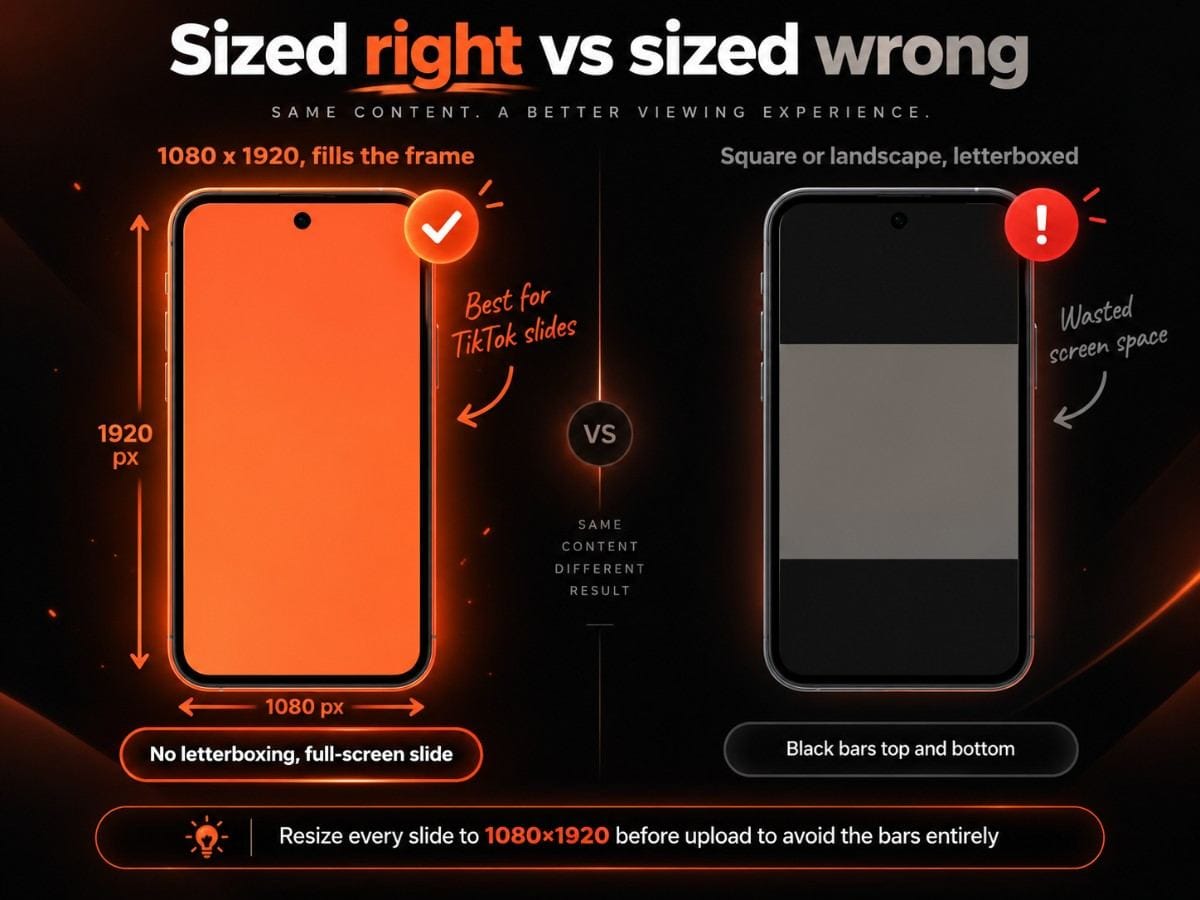
The single most common mistake is uploading photos at whatever size they came out of your camera or phone, then watching TikTok add black bars around them in the feed. Sticking to 1080 by 1920 pixels avoids this entirely, since it matches TikTok's native vertical format exactly and fills the whole screen edge to edge. Square or portrait images still work, they just show letterboxing on either side, which reads as unpolished compared to a slide that fills the frame.
If your photos are not already the right size, Handler's TikTok Image Resizer can get every slide to the correct dimensions before you upload, instead of relying on TikTok to crop or pad them for you.
What to actually put in a slideshow
Slideshows tend to work best for content that benefits from a moment to actually read or study each image, which is exactly where a fast-moving video struggles. A few formats that consistently perform well:
- Step-by-step tips or tutorials, one step per slide
- Before-and-after comparisons
- Quick myth-busting or fact lists
- Behind-the-scenes photo dumps from building or launching something
- Screenshots walking through how an app or product actually works
If you want a faster starting point than building slides one by one, Handler's AI TikTok Slideshow Generator can put a full set together for you, sized correctly from the start.
Correctly sized vs letterboxed, side by side
Quick answers
How many photos can you put in a TikTok slideshow? Between 4 and 35 images per slideshow, with 5 to 10 generally performing best. Fewer than 4 and TikTok will not let you post it as a Photo Mode carousel at all.
What size should TikTok slideshow photos be? 1080 by 1920 pixels, a 9:16 vertical ratio, is the size that fills the screen with no letterboxing. Square (1080x1080) and portrait (1080x1350) images are supported too, but will show black bars on the sides.
Can you add music to a TikTok slideshow? Yes. Music is added once for the whole slideshow rather than per individual image, and plays as viewers swipe through or as the images auto-advance on their own.
Why does my TikTok slideshow have black bars around the photos? Your images are not in TikTok's native 9:16 vertical ratio. Resizing them to 1080 by 1920 pixels before upload removes the letterboxing entirely and lets each slide fill the full screen.
Once it's posted
Once your slideshow is built and ready, Can You Schedule Posts on TikTok? Full 2026 Guide covers how to line it up in advance instead of posting it live.